Kixell Tag Back-Office
Access Kixell Tag from PrestaShop
The starting point is your PrestaShop back-office. In the left-hand menu, under Customize, click Kixell Tag to open the module.
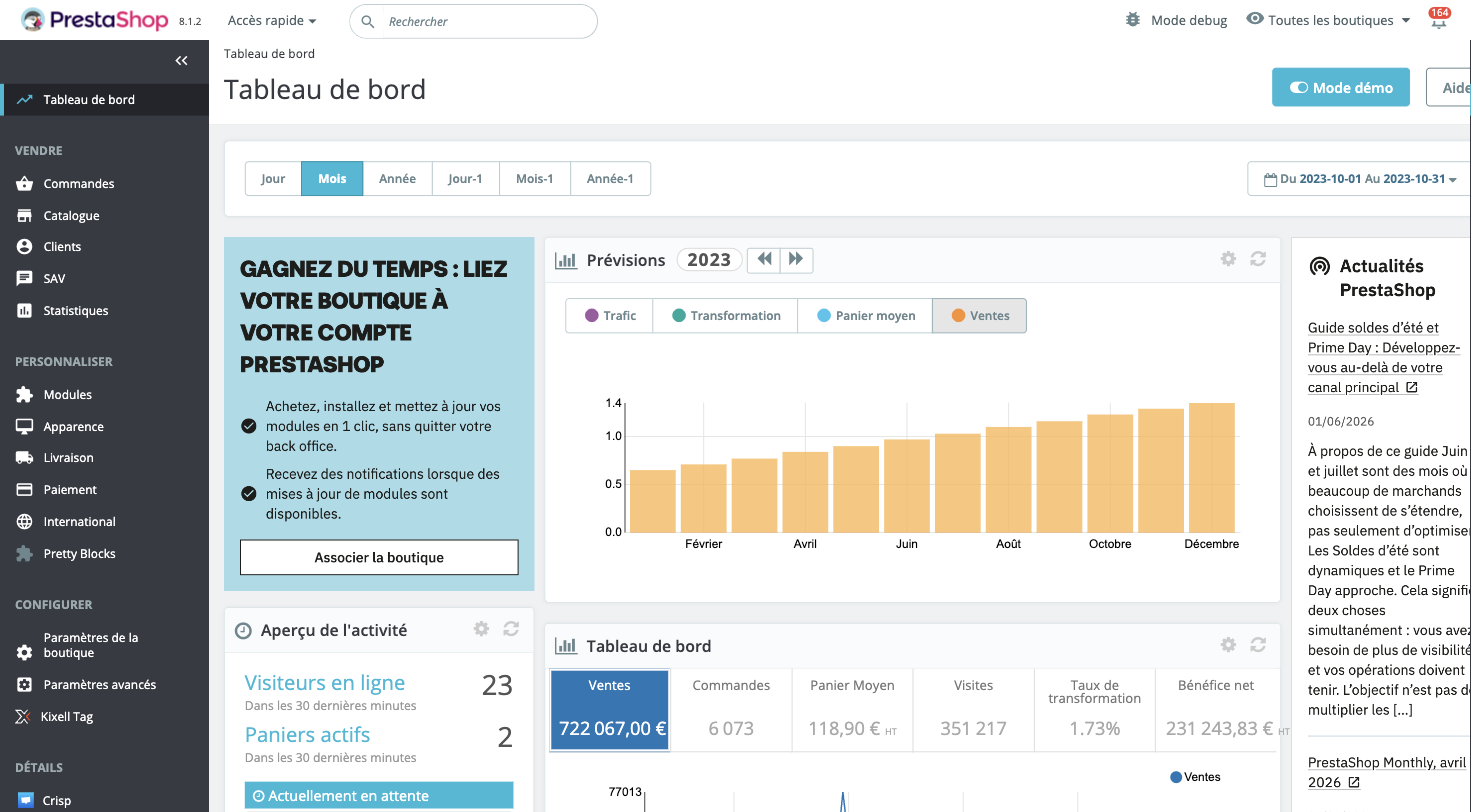
The module home page
Once the module is open, you land on its home page: everything starts here. On a single screen, it brings together all of the module's configurations, for centralized management of your tracking and your consent.
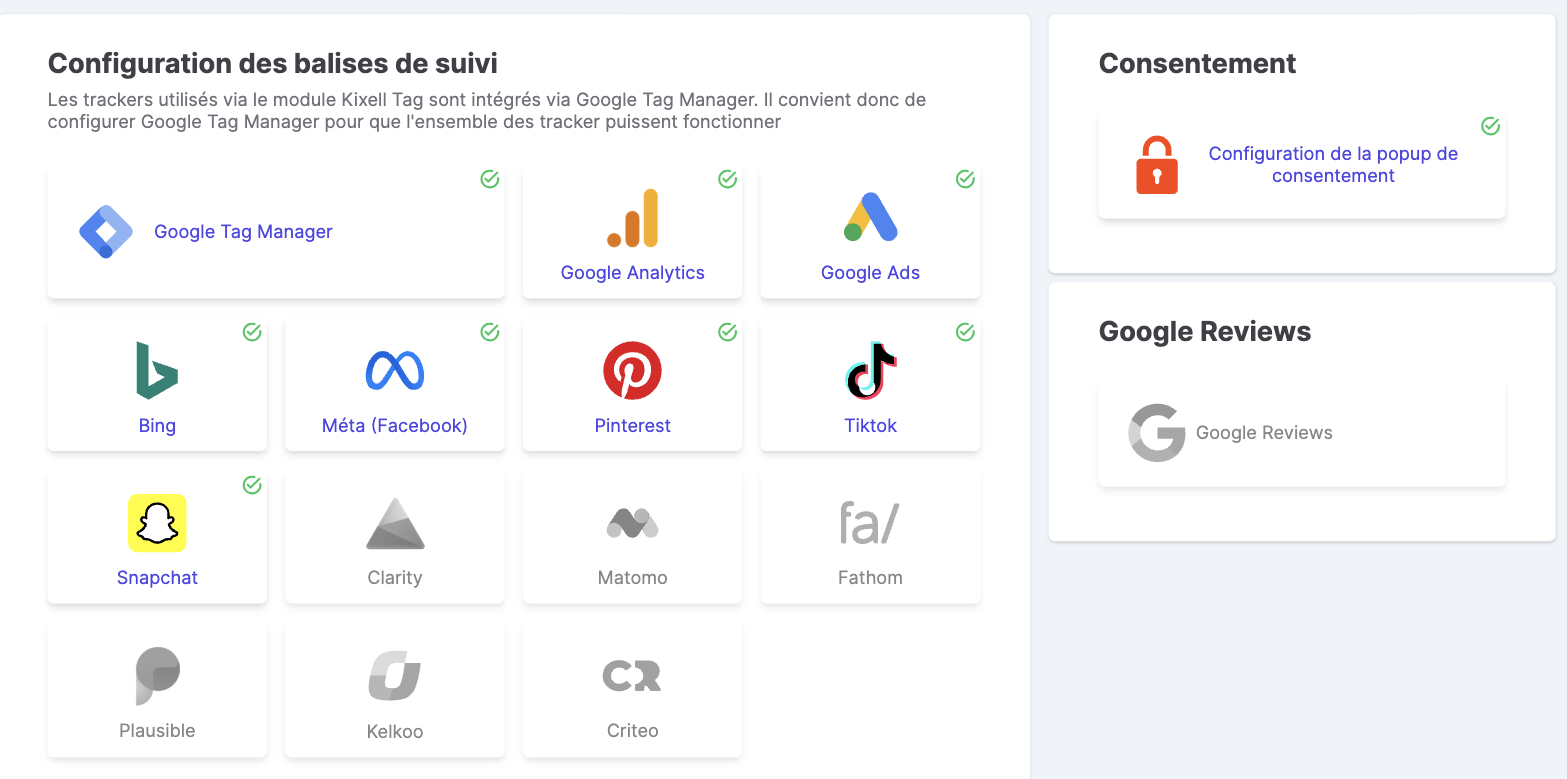
Tracking tags configuration
The central grid shows a tile per platform. All tags are integrated via Google Tag Manager: you therefore need to configure GTM for them to work (see Google Tag Manager Interface). A checked (✓) tile indicates an active tag. Click a tile to configure it — see dataLayer & Tracking Tags.
Consent & Google Reviews
On the right, two direct accesses:
- Consent → the consent popup configuration (banner, vendors, design).
- Google Reviews → the Google customer reviews configuration.
The top bar
- Selected store: the store selector in a multistore context.
- Consent statistics: the consent indicators (see CMP features).
- Settings: a menu gathering the License, the Consent register, IP exclusion, the interface Language, the Documentation, Orders (tracking/forcing) and Force update of the module.